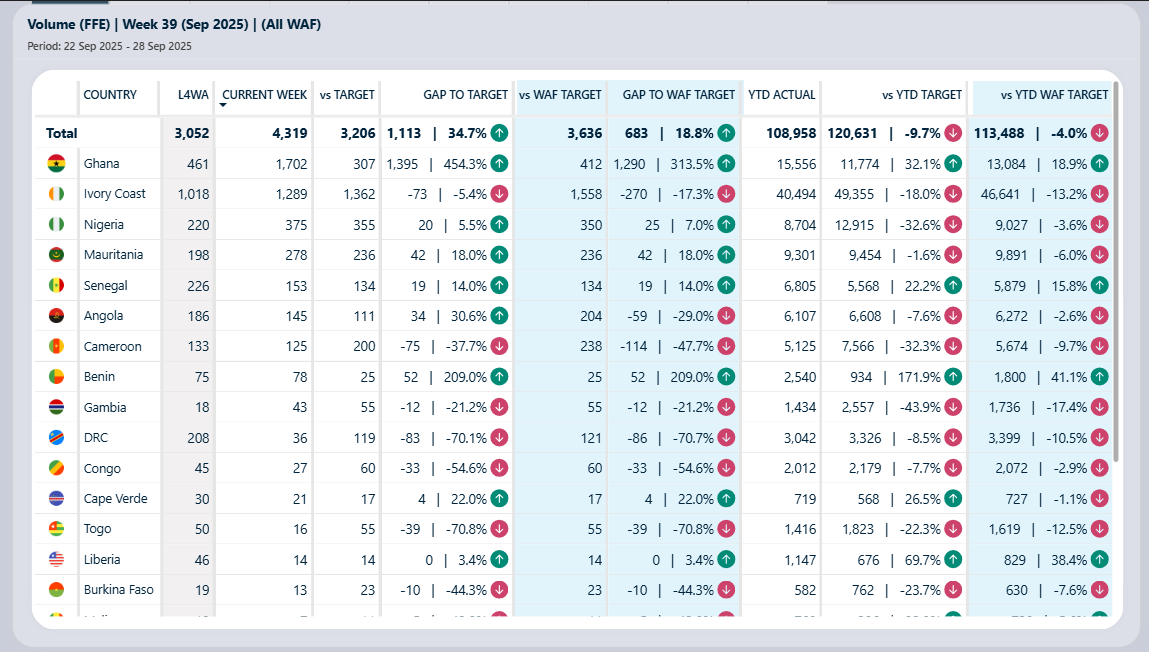






I recently had an interesting request: build a matrix visual where the column headers update automatically every week — no manual editing, no republishing. Just open the report on Monday and the headers have already moved on.
The Request
In a single matrix visual, show the following columns — all with dynamic labels:
| Column | Description |
|---|---|
| Historical | All weeks prior to the L4WA window |
| L4WA | Last 4 Weeks Average (excluding the current week) |
| W-4 through W-1 | The four individual weeks that make up the L4WA |
| Current Week | Always the most recently completed week |
| MTD | Month-to-date |
| YTD | Year-to-date |
The critical requirement: as we move into a new week, every label updates accordingly — week numbers, month names, and year all shift without any manual intervention.
The Challenge
This is not native Power BI behaviour. The Matrix visual renders column headers from the values in a field — it has no built-in mechanism to dynamically relabel those headers based on a time offset. There is also no conditional formatting option that targets matrix column headers directly.
To illustrate: as of the time of writing we are in W41 2025. The matrix should currently display:
Historical (W1 2024 – W37 2025) | L4WA | W38 2025 | W39 2025 | W40 2025 | W41 2025 | Current W42 2025 | Oct MTD | 2025 YTD
Next week (W42), it should automatically shift to:
Historical (W1 2024 – W38 2025) | L4WA | W39 2025 | W40 2025 | W41 2025 | W42 2025 | Current W43 2025 | Oct MTD | 2025 YTD
Everything moves — no user action required.
The Solution
The approach requires four components working together:
- Calendar / Date table — with week offset columns and a calculated column for the dynamic period label
- Disconnected table — a summary “Matrix Period” table that merges the calendar periods with the L4WA, MTD, and YTD rows
- Base measures — the underlying business metrics (e.g., Revenue, Booked FFE)
- Dynamic measures — measures that evaluate against the selected period label
1. Calendar / Date Table
I always include a calendar table in every report I build, and I always make sure it has offset columns (highlighted in green below). These offsets simplify time intelligence significantly — instead of writing complex date comparisons, I can just reference CurrWeekOffset = -1 to mean “last week.”

Calculated Column: Relative Time Period
This column is the heart of the solution. It evaluates each date’s week offset and returns the appropriate dynamic label string.

Relative Time Period =
-- ============================================================
-- Historical: everything older than 5 weeks before current
-- ============================================================
VAR Historical =
    'Calendar'[Date]
        <= CALCULATE(
            MAX( 'Calendar'[Date] ),
            FILTER( ALL( 'Calendar' ), 'Calendar'[CurrWeekOffset] = -6 )
        )

VAR HistoricalName =
    "Historical ("
    & FORMAT(
        CALCULATE(
            MIN( 'Calendar'[Date] ),
            FILTER( ALL( 'Calendar' ), 'Calendar'[CurrWeekOffset] <= -6 )
        ),
        "\Www yyyy"
    )
    & " - "
    & FORMAT(
        CALCULATE(
            MAX( 'Calendar'[Date] ),
            FILTER( ALL( 'Calendar' ), 'Calendar'[CurrWeekOffset] = -6 )
        ),
        "\Www yyyy"
    )
    & ")"

-- ============================================================
-- Individual weeks (W-4 through W-1)
-- ============================================================
VAR W1     = 'Calendar'[CurrWeekOffset] = -2
VAR W1Name = FORMAT(
    CALCULATE(
        MIN( 'Calendar'[Date] ),
        FILTER( ALL( 'Calendar' ), 'Calendar'[CurrWeekOffset] = -2 )
    ),
    "\Www yyyy"
)

VAR W2     = 'Calendar'[CurrWeekOffset] = -3
VAR W2Name = FORMAT(
    CALCULATE(
        MIN( 'Calendar'[Date] ),
        FILTER( ALL( 'Calendar' ), 'Calendar'[CurrWeekOffset] = -3 )
    ),
    "\Www yyyy"
)

VAR W3     = 'Calendar'[CurrWeekOffset] = -4
VAR W3Name = FORMAT(
    CALCULATE(
        MIN( 'Calendar'[Date] ),
        FILTER( ALL( 'Calendar' ), 'Calendar'[CurrWeekOffset] = -4 )
    ),
    "\Www yyyy"
)

VAR W4     = 'Calendar'[CurrWeekOffset] = -5
VAR W4Name = FORMAT(
    CALCULATE(
        MIN( 'Calendar'[Date] ),
        FILTER( ALL( 'Calendar' ), 'Calendar'[CurrWeekOffset] = -5 )
    ),
    "\Www yyyy"
)

-- ============================================================
-- Current Week (always the most recently completed week)
-- ============================================================
VAR CurrentW     = 'Calendar'[CurrWeekOffset] = -1
VAR CurrentWName =
    "Current "
    & FORMAT(
        CALCULATE(
            MIN( 'Calendar'[Date] ),
            FILTER( ALL( 'Calendar' ), 'Calendar'[CurrWeekOffset] = -1 )
        ),
        "\Www yyyy"
    )

-- ============================================================
-- Return
-- ============================================================
RETURN
SWITCH(
    TRUE(),
    Historical, HistoricalName,
    W4,         W4Name,
    W3,         W3Name,
    W2,         W2Name,
    W1,         W1Name,
    CurrentW,   CurrentWName,
    BLANK()
)
Calculated Column: Relative Time Period Index
This column assigns a sort order so the matrix columns appear in the correct left-to-right sequence.
Relative Time Period Index =
SWITCH(
    TRUE(),
    'Calendar'[CurrWeekOffset] <= -6, 1,   -- Historical
    'Calendar'[CurrWeekOffset] = -5,  3,   -- W-4
    'Calendar'[CurrWeekOffset] = -4,  4,   -- W-3
    'Calendar'[CurrWeekOffset] = -3,  5,   -- W-2
    'Calendar'[CurrWeekOffset] = -2,  6,   -- W-1
    'Calendar'[CurrWeekOffset] = -1,  7,   -- Current Week
    BLANK()
)
Note: The index skips position 2 intentionally — that slot is reserved for L4WA, which is added in the disconnected table in the next step.
2. Disconnected Table
With the calendar calculated columns ready, I needed a single “summary” table to bring everything together — including L4WA, MTD, and YTD rows that don’t exist in the calendar.

The Matrix Period table is built as a UNION of:
- The distinct values from
Calendar[Relative Time Period]andCalendar[Relative Time Period Index] - Hard-coded rows for L4WA (index 2), the current month MTD, and the current year YTD
This table is not related to any other table — it is purely used as the column field in the matrix visual, and the dynamic measure reads SELECTEDVALUE from it to decide what to calculate.
3. Dynamic Measure
With the base measures ([Total Revenue (USD)], [Total Booked FFE]) already in place, I created a dynamic measure for each. Both follow the same pattern — here is the revenue version:
Revenue Value =
VAR CurrOffset = [Current Week Offset]

VAR CurrWeekMaxDate =
    CALCULATE(
        MAX( 'Calendar'[Date] ),
        FILTER( ALL( 'Calendar' ), 'Calendar'[CurrWeekOffset] = CurrOffset )
    )

VAR CurrMonthStartDate =
    CALCULATE(
        MIN( 'Calendar'[Date] ),
        FILTER(
            ALL( 'Calendar' ),
            'Calendar'[CurrMonthOffset] = 0
                && 'Calendar'[Year] = YEAR( CurrWeekMaxDate )
        )
    )

VAR CurrYearStartDate =
    CALCULATE(
        MIN( 'Calendar'[Date] ),
        FILTER( ALL( 'Calendar' ), 'Calendar'[CurrYearOffset] = 0 )
    )

VAR sel = SELECTEDVALUE( 'Matrix Period'[Relative Time Period] )

VAR __CurrentMonth =
    CALCULATE(
        MIN( 'Calendar'[Month Short] ),
        FILTER( 'Calendar', 'Calendar'[CurrMonthOffset] = 0 )
    )

RETURN
SWITCH(
    TRUE(),

    -- L4WA: average of the 4 weeks immediately before current
    sel = "L4WA",
        DIVIDE(
            CALCULATE(
                [Total Revenue (USD)],
                FILTER(
                    ALL( 'Calendar' ),
                    'Calendar'[CurrWeekOffset]
                        IN { CurrOffset - 1, CurrOffset - 2, CurrOffset - 3, CurrOffset - 4 }
                )
            ),
            4
        ),

    -- MTD: from the first day of the current month to the end of the current week
    sel = __CurrentMonth & " MTD",
        CALCULATE(
            [Total Revenue (USD)],
            FILTER(
                ALL( 'Calendar' ),
                'Calendar'[Date] >= CurrMonthStartDate
                    && 'Calendar'[Date] <= CurrWeekMaxDate
            )
        ),

    -- YTD: from the first day of the current year to the end of the current week
    sel = YEAR( CurrYearStartDate ) & " YTD",
        CALCULATE(
            [Total Revenue (USD)],
            FILTER(
                ALL( 'Calendar' ),
                'Calendar'[Date] >= CurrYearStartDate
                    && 'Calendar'[Date] <= CurrWeekMaxDate
            )
        ),

    -- Historical: everything older than 5 weeks before current
    sel = "Historical",
        CALCULATE(
            [Total Revenue (USD)],
            FILTER( ALL( 'Calendar' ), 'Calendar'[CurrWeekOffset] <= CurrOffset - 5 )
        ),

    -- Individual weeks: match directly on the Relative Time Period label
    NOT( ISBLANK( sel ) ),
        CALCULATE(
            [Total Revenue (USD)],
            FILTER( ALL( 'Calendar' ), 'Calendar'[Relative Time Period] = sel )
        ),

    BLANK()
)
The key insight here is the sel = __CurrentMonth & " MTD" and sel = YEAR(...) & " YTD" comparisons — because the MTD and YTD row labels in the disconnected table are also built dynamically (using the same month and year logic), the SELECTEDVALUE will match correctly as the calendar rolls forward.
4. Plotting the Matrix
With the measures ready, the matrix visual setup is straightforward:
- Rows: Country (or whatever dimension you’re analysing)
- Columns:
Relative Time Periodfrom the Matrix Period disconnected table - Values: The dynamic measures — Revenue Value, FFE Value, etc.

Sort the Relative Time Period column by Relative Time Period Index to ensure the columns render in the correct order.
Wrapping Up
The combination of offset-based calculated columns in the calendar, a disconnected period table, and a SELECTEDVALUE-driven dynamic measure gets you to what should have been a native feature. The result is a matrix that updates its own column headers every week without any manual intervention.
Have you run into this challenge before? If so, how did you approach it? I’d love to hear other approaches.